layout中巧妙使用Space和weight

经常遇到这种布局,见下图,1、2、3、4、5、6的间隙都是等宽的,这种布局很简单,我们一般都使用LinearLayout,再利用weight属性,就可以实现。
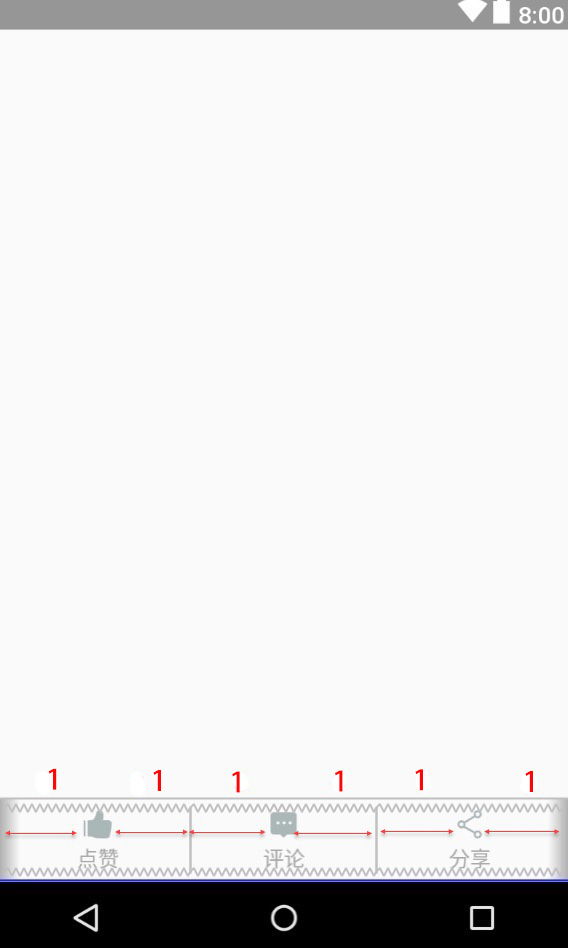
代码
1
2
3
4
5
6
7
8
9
10
11
12
13
14
15
16
17
18
19
20
21
22
23
24
25
26
27
28
29
30
31
32
33
34
35
36
37
38
39
40
<LinearLayout
android:layout_width="match_parent"
android:layout_height="wrap_content"
android:layout_alignParentBottom="true"
android:orientation="horizontal"
android:padding="6dp">

<TextView
android:id="@+id/tv_detail_bottom_like"
android:layout_width="0dp"
android:layout_height="wrap_content"
android:gravity="center_horizontal"
android:layout_weight="1"
android:drawablePadding="3dp"
android:drawableTop="@mipmap/ic_daily_like"
android:text="@string/detail_bottom_like"
android:textColor="@color/bottom_text" />

<TextView
android:id="@+id/tv_detail_bottom_comment"
android:layout_width="0dp"
android:layout_height="wrap_content"
android:layout_weight="1"
android:gravity="center_horizontal"
android:drawablePadding="3dp"
android:drawableTop="@mipmap/ic_daily_comment"
android:text="@string/detail_bottom_commit"
android:textColor="@color/bottom_text" />

<TextView
android:id="@+id/tv_detail_bottom_share"
android:layout_width="0dp"
android:layout_height="wrap_content"
android:gravity="center_horizontal"
android:layout_weight="1"
android:drawablePadding="3dp"
android:drawableTop="@mipmap/ic_daily_share"
android:text="@string/detail_bottom_share"
android:textColor="@color/bottom_text" />
</LinearLayout>

如果想按下面图示的比例呢,先看图

代码
1
2
3
4
5
6
7
8
9
10
11
12
13
14
15
16
17
18
19
20
21
22
23
24
25
26
27
28
29
30
31
32
33
34
35
36
37
38
39
40
41
42
43
44
45
46
47
48
49
50
51
52
53
<LinearLayout
android:layout_width="match_parent"
android:layout_height="wrap_content"
android:layout_alignParentBottom="true"
android:orientation="horizontal">

<android.support.v4.widget.Space
android:layout_width="0dp"
android:layout_height="1dp"
android:layout_weight="2" />

<TextView
android:id="@+id/tv_detail_bottom_like"
android:layout_width="wrap_content"
android:layout_height="wrap_content"
android:drawablePadding="3dp"
android:drawableTop="@mipmap/ic_daily_like"
android:text="@string/detail_bottom_like"
android:textColor="@color/bottom_text" />

<android.support.v4.widget.Space
android:layout_width="0dp"
android:layout_height="1dp"
android:layout_weight="3" />

<TextView
android:id="@+id/tv_detail_bottom_comment"
android:layout_width="wrap_content"
android:layout_height="wrap_content"
android:drawablePadding="3dp"
android:drawableTop="@mipmap/ic_daily_comment"
android:text="@string/detail_bottom_commit"
android:textColor="@color/bottom_text" />

<android.support.v4.widget.Space
android:layout_width="0dp"
android:layout_height="1dp"
android:layout_weight="3" />

<TextView
android:id="@+id/tv_detail_bottom_share"
android:layout_width="wrap_content"
android:layout_height="wrap_content"
android:drawablePadding="3dp"
android:drawableTop="@mipmap/ic_daily_share"
android:text="@string/detail_bottom_share"
android:textColor="@color/bottom_text" />

<android.support.v4.widget.Space
android:layout_width="0dp"
android:layout_height="1dp"
android:layout_weight="2" />
</LinearLayout>

在日常开发中,可以使用weight属性来实现等比例布局,也可以通过Space实现非等比例布局。当然,这两种方式也有交叉点,也就是有些情况下,可以互相取代。

Space官方解释:

Space is a lightweight View subclass that may be used to create gaps between components in general purpose layouts.

翻译过来:

Space是一个轻量级的View子类,可用于在通用布局中创建组件之间的间隙。